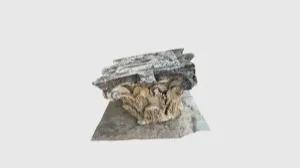
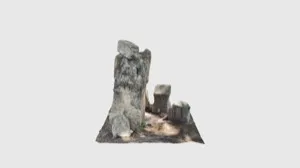
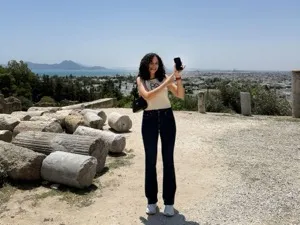
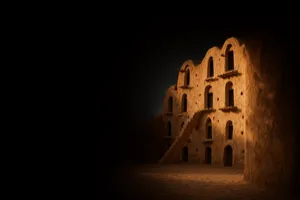
TanitXR creates detailed 3D scans of historical and archaeological sites, landmarks, pottery,
architecture, and cultural artifacts for an open, global digital heritage archive. But heritage is never
just an object, whether digital or physical. It belongs to living communities, it carries meaning and
memory, and it is often protected by law and by custom. This guide covers how to capture a great scan, and
how to do it ethically: with consent, care, and respect for the people whose heritage it is.
As a TanitXR Heritage Scout, you are part of a global community that is dedicated to upholding the
highest standards in ethical digital heritage. Our core pillars are:
People and communities first. We document heritage with communities, not just about them. The
people who hold, use, and remember a place or object have the first and final say in how it is documented
and shared.
Consent where it counts. For publicly visible heritage, building exteriors, monuments,
facades, ruins, and public art, public visibility is generally a sound basis to document, subject to
local rules and any permit requirements. For living or community heritage we seek free, prior, and informed
consent from the relevant owners, caretakers, or cultural authorities first. This process requires the
involvement of the TanitXR Leadership Team.
Community authority and data sovereignty. Communities decide whether their heritage is scanned,
what is captured, and whether the result is shared openly, shared conditionally, or kept restricted. This
authority continues after the scan is made.
Do no harm. We do not scan sacred, ceremonial, funerary, or human remains, private interiors, or
objects of contested or unclear ownership without explicit authorization from the right people.
Transparency and authenticity. We always document where a scan came from, and how it was
made.
Reciprocity and benefit. Documentation should benefit the community whose heritage it is, for
example, by offering them a copy of the scan and crediting the knowledge holders who made it possible.
Legal compliance. We respect national and local heritage laws, protected-site designations, and
permit requirements. When a permit is required, we obtain it before scanning.
Click here to sign our Ethical Scanning consent
form before conducting your first scan.
Digitizing Tangible Heritage (Objects and Sites)
Note: Many cultural heritage sites and points of interest are protected and managed by governmental
organizations. To digitize sites within these areas, formal permission is required.
TanitXR is digitizing heritage sites or archaeological features that are plainly visible in public
places. This includes what you can see from streets and public plazas.
Not sure where to start? Look for objects, places, and details that carry cultural, historical, artistic,
or community meaning. These sites are all around you!
Good things to scan include:
Architecture and ruins, doors, arches, columns, facades, walls, courtyards, monuments, and
the exterior of historic homes
Objects and artifacts, pottery, tools, carvings, statues, tiles, textiles, inscriptions, and
household items
Small details, patterns, textures, symbols, damage, repairs, maker's marks, or decorative
elements
Everyday heritage, bakeries, workshops, markets, gathering places, family heirlooms, gardens,
and community spaces
At-risk heritage, places or objects threatened by weather, neglect, development, conflict,
theft, or loss of memory
What not to scan:
Shiny or reflective textures (difficult for scanner to pick up)
Moveable objects (like textiles or tapestries that are blowing in the wind)
Busy areas (pedestrian and vehicle traffic can add noise to your scan and complicate processing)
Digitizing Intangible Heritage (Stories and Practices)
Some heritage is not just a building or object. It lives in stories, songs, rituals, recipes, crafts,
dances, languages, memories, and everyday practices. This is called intangible heritage.
You cannot always 3D scan intangible heritage directly, but you can document the objects, spaces, and
people connected to it.
Examples:
A traditional bread recipe → scan the oven, tools, table, or bakery space
A weaving practice → scan the loom, textile patterns, tools, or finished pieces
A disappearing craft → scan the tools, workshop, materials, and finished work
A family story → scan the home, courtyard, photograph, object, or place connected to the memory.
Proceed with caution, as homes are private spaces and family memories are personal. Record them only with
documented consent, and respect any limits that families set on how their story, home, and belongings are
shared.
A festival or ritual → scan decorations, costumes, instruments, gathering spaces, or symbolic objects.
Proceed with caution, as working on ceremonies, sacred practices and objects may be restricted or require
additional permissions.
When documenting intangible heritage, include context with your upload:
What is this tradition, story, or practice called?
Who practices it?
Where does it happen?
How did you learn about it?
Why does it matter?
Is there a story, memory, or quote that should go with the scan?
Getting Started
App: Download Scaniverse (free, by Niantic Spatial, Inc.) from the
iOS
App Store or Google Play.
Goal: Create detailed 3D scans of historical landmarks, ruins, pottery, architecture, and cultural
artifacts for a global digital heritage archive.
Minimum System Requirements
iOS (iPhone / iPad)
iOS 16.6 or later
A device with the A12 Bionic chip or later:
iPhone XR / XS / XS Max or newer
iPhone SE (2nd or 3rd generation)
iPad (8th gen+), iPad Air (4th gen+), iPad Mini (5th gen+), iPad Pro 11" (all), iPad Pro 12.9" (3rd
gen+)
Newer iPhones scan faster and more accurately, but any supported device works.
Android
Android 7.0 (Nougat) or later
At least 4 GB of RAM
ARCore with Depth API support
On Android, Scaniverse builds 3D models from camera footage (photogrammetry). Scans work well but take
longer to process than on modern iPhones.
First Launch: Choose "Classic"
When you first open Scaniverse, you'll see a "Choose your experience" screen with two options:
New and Classic.
Select "Classic." This is the experience Tanit XR uses, it processes scans on your phone,
supports Mesh mode, and lets you export FBX files directly from the app.
The "New" experience requires creating an account and is designed for teams using Niantic's cloud-based
Sites workflow, which uses a monthly credit system. We are not using it at this time.
No account needed in Classic mode. If the app asks you to sign in or create an account, just tap
"Skip for now", you can scan, process, and export without one.
If you accidentally chose "New," you can switch back: go to Library → Settings and select the
Classic experience.
Step-by-Step Scanning Instructions
Open Scaniverse (Classic experience)
Tap the "+" button to start a new scan.
Choose "Mesh" (not "Splat"), this is what we need for Tanit XR.
Select the size of your object:
Small Object – pottery, carvings, statues
Medium Object – doors, columns, mosaics
Large Area – facades, walls, monuments
The app automatically uses the best scanning method for your device, no extra setup needed on iOS or
Android.
Begin the Scan
Point the camera at the object, then tap the record button to start, no need to hold it down.
Tap again when you're finished.
Only seeing red lines on screen? Check that the lighting is good, then point the camera directly
at the object before tapping the record button. As you scan, some areas of your scene will have
diagonal red lines and others will not, the red-lined areas are the parts you haven't captured yet, so
keep moving until they're gone.
Move slowly around the object while recording a video. keep the camera slowly moving at all times; don't
pause or go too fast, as the camera can get disoriented
Get multiple angles: walk around, crouch down, raise your phone, etc.
Avoid fast movements and make sure to capture all sides.
scans can be completed indoors or outdoors. The most important thing is even lighting (lack of shadows
or bright lights).
Pedestrian traffic and/or moveable objects in the area should also be avoided. Aim to capture objects
with a fixed shape.
In bright sun, try to scan in partial shade or overcast light.
Aim for 1–3 minutes of scanning, longer scans can actually reduce quality.
As you scan, blurry areas on screen show where you still need coverage. Keep moving until the whole
object looks sharp.
Android users: capture extra overlapping angles and passes. Android relies entirely on camera
footage to build the 3D model, so thorough coverage and good, even light matter even more.
Save Without Processing (Important!)
When you are done scanning, tap Area or Detail to process the scan immediately, or
Save Draft to process later.
Note: processing your data can drain your battery, so you may want to save your captures and then
process them later with your phone plugged in to a power source. This is especially true on Android, where
processing takes longer than on modern iPhones.
We recommend processing your scan with the Detail setting, which can take several minutes.
Processing and Exporting
Back at Home: Process Your Scan
Open the Scaniverse Library (bottom menu).
Tap your saved scan.
Tap the name and give it a clear title (e.g., "Ksar Ouled Soltane – Main Door").
Tap "Process" and choose the Detail setting, then wait for the app to complete the 3D
model.
Keep Scaniverse open in the foreground while it processes. On high-end Android phones this typically
takes a few minutes per scan; older devices may take longer.
Export the Model
Once processed, tap "Share" > "Export Model."
Select FBX format.
Keep textures enabled.
Name it "Scan Title_Location"
Share Your Model
Upload your file, below, and then email description and other details to
info@tanitxr.org